
Transferring files wirelessly from one PC to android can become a difficult task for some users. There are various ways one can transfer files from their PC to mobile such as Wifi, Bluetooth, cloud storage, and email.
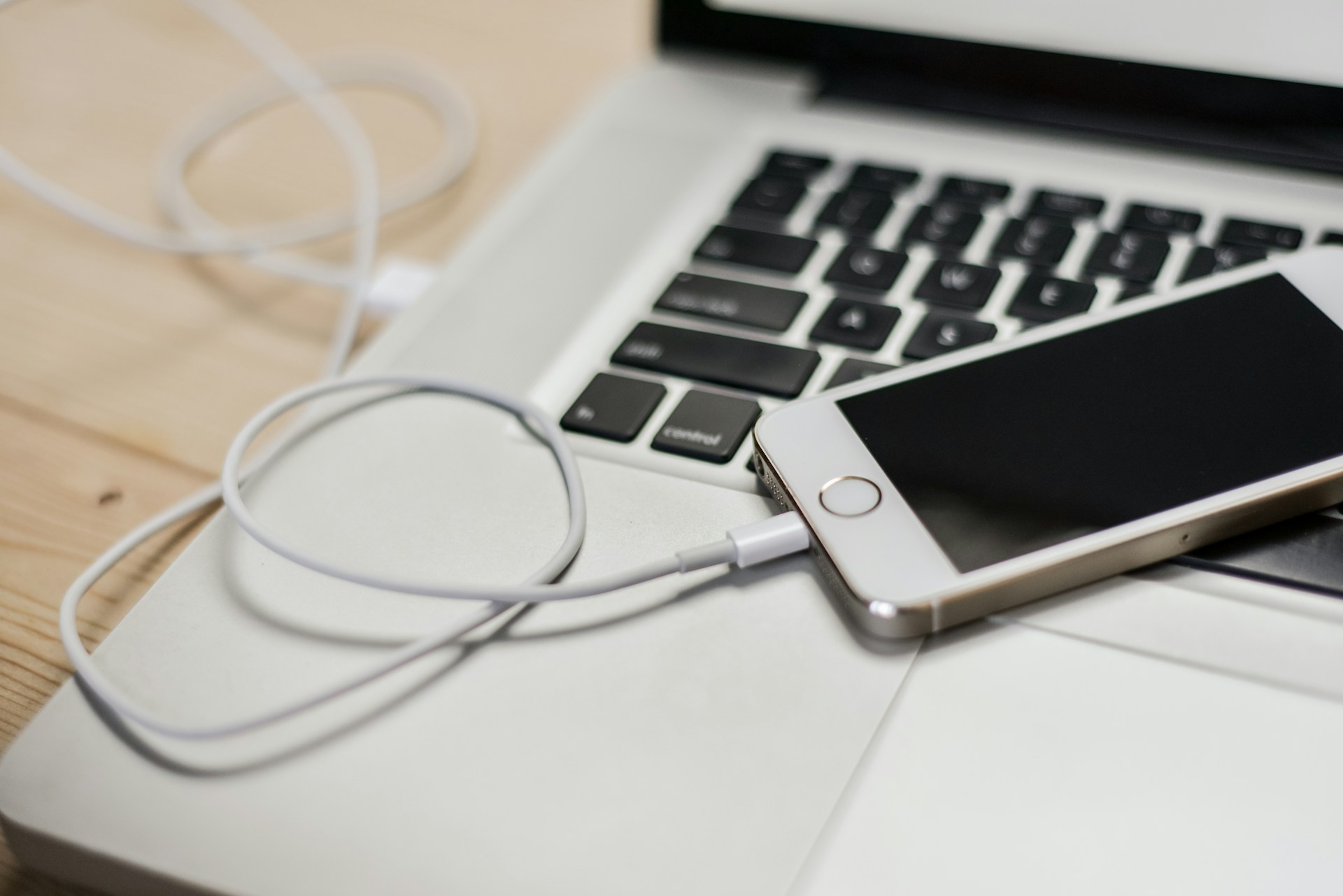
Here are a few steps one needs to follow in each of these methods to transfer their files.
Using Bluetooth
One of the easiest options to transfer your files from PC to mobile is via Bluetooth. This technology has been used for many years now for wireless transfers. Here are the steps one needs to follow to transfer files via Bluetooth.
- Activate Bluetooth on your PC from the taskbar by clicking on the Bluetooth icon. One can also look for the Bluetooth icon on the system tray.
- Enable Bluetooth on your mobile phone and ensure that your device is discoverable to other devices too.
- Now that you have enabled Bluetooth on both devices, right-click on the Bluetooth icon on the taskbar.
- In that window, click on add Bluetooth or other devices.
- Click on the name of your mobile when it shows up in the search window.
- Pair your device by confirming the pairing code that appears on your mobile and laptop by clicking yes.
- Now that your devices are paired, click connect and share the files that you wish to.
Using Wireless media reader
Although a wireless media reader is often used as a power bank, it can transfer files to multiple devices at the same time. To use a wireless media reader, follow these steps.
- Upload the files that you wish to transfer on these media readers via SD card or USB drive.
- Connect your mobile to the media reader’s hotspot and access the files and download them if you want.
Using Google Drive
Google Drive offers us the safety and security of our data at all times. However, it can also be used to upload or transfer files to other devices. To transfer your data from PC to your mobile using Google Drive, follow these steps.
- Sign in on both your PC and mobile with a common account.
- Upload the file that you wish to transfer from your PC to your common account’s Google Drive.
- Open Drive on your phone and download the file from your Google Drive.
- Now you can transfer any file irrespective of its size on Google Drive and easily download it from there on any device.
Using OneDrive
OneDrive is an online cloud that allows users to store their data and access it from any device. Here are a few steps one needs to follow to transfer their files.
- Download and install OneDrive on both of your devices.
- Set up an account and log in from both devices.
- Choose a file that you wish to upload on the cloud to transfer it later on.
- Access your OneDrive cloud from your phone and select the file you want to transfer to your mobile.
- Download that file from the cloud, and now you have successfully transferred your file from your laptop to your mobile.
Using Email
One of the easiest ways one can send small media files is via email. Follow these steps to send media via email.
- Tap on compose a new mail.
- Click on the attachment icon and add the files you want to transfer.
- Now send that to an alternate email ID that you have signed in on your mobile.
Using Dropbox
Dropbox is another cloud storage system that allows you to transfer files from your PC to your mobile. Here are a few simple steps that you need to follow to do that.
- Install Dropbox on both of your devices.
- Sign in on your Dropbox account and ensure you are logged in on this on both of your devices.
- Upload the desired file that you want to transfer from your PC on your dropbox cloud.
- Open Dropbox on your mobile phone and open the files you want to download and download to complete the transfer.
Using Xender
WiFi networks can also be used to transfer files from one device to another. To do so, you can use apps like Xender that allow users to transfer over WiFi. Follow these simple steps to transfer your files.
- Install Xender on your PC and mobile.
- Open the Xender app and click on the option connect to your Laptop or PC
- Turn on your hotspot to easily transfer files offline.
- Click on the xender WiFi network on your PC by clicking on the Xender WiFi network on your PC.
- Now copy the URL displayed on your Xender screen.
- Click on the accept button on the popup message on your mobile to establish a connection between both of the devices.
- Another method to establish a connection to transfer files via Xender is while using the internet.
- Type “http://web.xender.com” on your PC browser, and then you will obtain a QR code on the screen.
- Scan that QR from your phone to connect both devices.
- Now that both of your devices are connected either by offline or online method, click on the upload file to choose and transfer the file that you wish to transfer.
Recommended for you:

Leave a Reply