
Are you frustrated with the continuous scrolling feature on Google search results? You’re not alone. While some users may find it convenient to scroll through pages without clicking on page numbers, others prefer the traditional paged approach. Fortunately, there are a few ways to disable this feature on desktop Google search results.
Google Continuous Scroll is a feature that automatically loads new results as you scroll down the page. While it was designed to make navigation easier, many users prefer more control over their search results.
If you are one of those users, you’ll be happy to know that Google does provide an option to disable the “continuous” scrolling mode. However, it’s not immediately visible.
How to Disable Continuous Scrolling on Desktop Google Search Results
To turn off Google’s infinite/Continuous Scroll using your desktop browser, follow these steps:
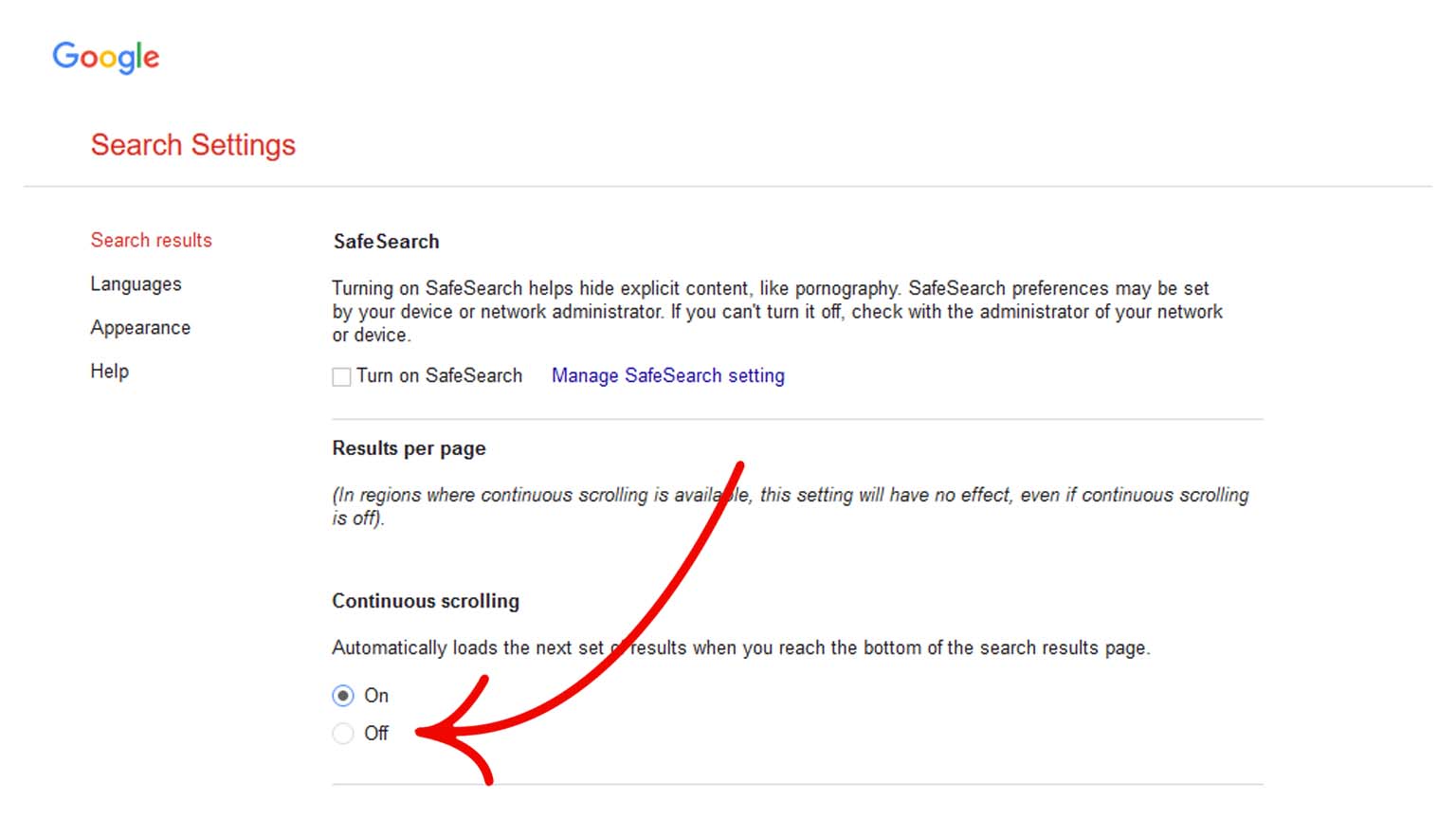
- Sign in to Google to ensure your preferences are supported across all your devices.
- Click the “Settings” button in the top-right corner of your screen.
- A panel will appear to the right. Click “See all search settings” below the “Quick Settings” subheading.
- Scroll down to the “Continuous Scrolling” section.
- Select “Off” and scroll down to save your settings.
And that’s it! You have successfully disabled Google Infinite Scroll and regained more control over your search results.
Unable to disable the feature?
If you can’t see the option to turn off/disable continuous scrolling in settings, you can try the following methods:
Method 1: Change Region Settings
If you’re willing to compromise on search relevance, you can change your region settings to a country where Google hasn’t locked down the infinite scrolling feature. For instance, if you’re based in the United States, you can try switching your region to Australia, where Google search results may still have the paged approach. However, keep in mind that this may affect the quality of your search results and relevance to your location.
Method 2: Use a Browser Extension
Another option is to use a browser extension to disable the continuous scrolling feature. While there may not be an official Google extension for this purpose, some third-party extensions may work. For example, the “Disable AutoScroll” extension for Google Chrome claims to stop the automatic scrolling feature on various websites, including Google search results.
Method 4: Use Alternative Search Engines
Lastly, if none of the above methods work for you, consider using alternative search engines that don’t have the continuous scrolling feature. For instance, Startpage and Whoogle are search engines that fetch search results from Google without compromising on user privacy. While these search engines may have a different interface and search algorithm, they may provide a suitable alternative to Google search results.
We hope this guide has helped you take back control of your Google search results. Happy searching!
