
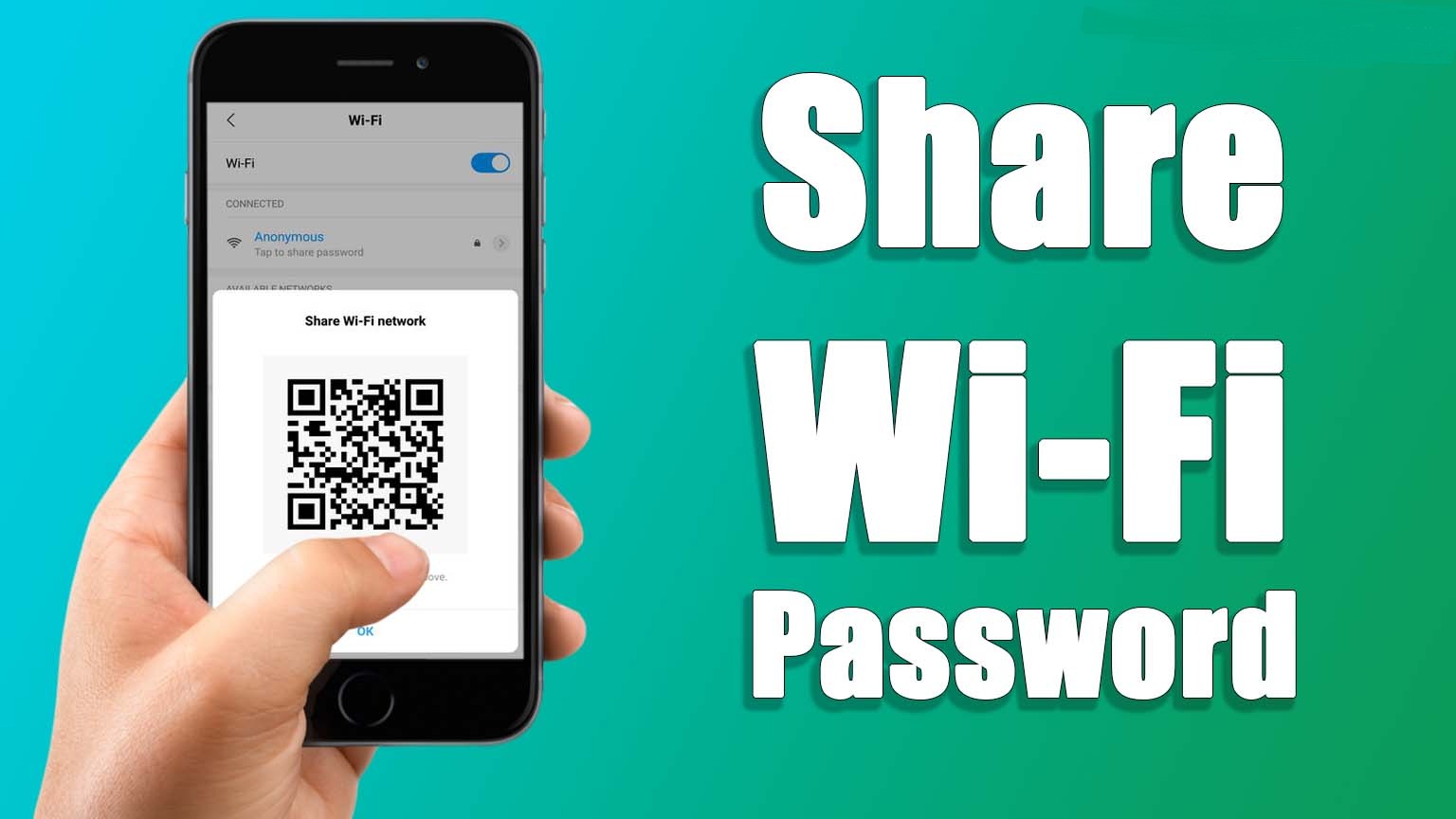
Today, in a world full of the internet, everyone needs Wi-Fi to carry out their work without any interruption. But what if you are not at home and you need an urgent internet connection? You will ask your friends, family, or anyone to share their Wi-Fi password, and then you can connect. What if they too don’t remember their password? Of course, they will go to the Wi-Fi settings on their phone, and then check the password, and then inform you. Isn’t it a very long process?
So, if you are tired of asking or telling everyone, what’s your Wi-Fi password? Now, you don’t have to worry, as we are here to share with you the tips and tricks that can help you to share your Wi-Fi password easily. Stay tuned till the end.
Steps To Share Wi-Fi From One Phone To Another
If you want to share Wi-Fi with any of your friends or family, follow the simple and easy steps given below:
Step 1: Drag down the notification bar on your phone
Step 2: Switch on the hotspot option
Step 3: Now, go to the list of available Wi-Fi connections on another phone by long pressing on the Wi-Fi option.
Step 4: Select the wifi from the list, and tap on it.
Step 5: Enter the password, and connect the phone to your Wi-Fi network.
Connect Wi-fi Using QR Code On Android
Nowadays, QR code is making our work a lot easier. With just one scan, your job is done. This started with online payments, and now it has spread its wings to other areas too. By scanning QR codes, you can easily and quickly connect with Wi-Fi.
The only thing required is that any of the phones must be connected to Wi-Fi, or the network connection of Wi-Fi must be saved in the phone. If any of the condition is available, you simply need to follow these steps:
- Go to your internet setting on the phone
- Select the Wi-Fi network that you want to share or get connected to
- Go to the Wi-Fi details of that particular network connection
- A QR code share icon will appear,
- Click on it, and you will find the QR code will be displayed on the screen.
- Now, open your phone’s camera, and scan the QR
- Automatically, the Wi-Fi will be connected.
Other than scanning, you can also dial the password in your phone to connect with the Wi-Fi. Follow the above-given process, and when the QR scanner appears, see below the scanner. The Wi-Fi password will appear. This way, you can easily dial the password into your Wi-Fi connection.
Steps To Connect Wi-Fi Using QR Code On iOS
Scanning a QR code is very simple, as QR itself stands for quick response. Connecting to Wi-Fi from another phone or even from the router can be an effective and fastest way to connect with the network. If you want to connect to Wi-Fi on your iOS phones, you can either connect by usual login credentials or directly through the shortcuts app. Here are the steps that you can follow to connect with Wi-Fi on iOS using the shortcuts app.
Step 1: If you don’t have an inbuilt shortcuts app, you can download it from the Apple AppStore.
Step 2: After installation, open the app, and tap on the gallery icon in the bottom right of the corner.
Step 3: The shortcuts for accessibility will appear on the screen; click on them.
Step 4: A list of icons will display on the screen; scroll down until you find the QR for your Wi-Fi option.
Step 5:Click on the option, and add it as a shortcut
Step 6: Now, the shortcut will be created for connecting the Wi-Fi network.
Step 7: You can easily open the shortcuts and go to connect your Wi-Fi section.
Step 8: Then, simply scan the QR code from phones or routers. Now, you are all set to enjoy your Wi-Fi.
How To Connect Wi-Fi By Sharing Password On Windows Device
Earlier users can share the details of their wifi by using Wi-Fi sense. However, it was recently taken down due to security reasons. So now, there is no quick and simple way in which users can share Wi-Fi passwords from their Windows. To do this, now you have to follow these steps –
- Find the Windows icon and choose the settings gear on the left and then click Network and Internet.
- Choose the Network and Sharing Centre from the Status tab located on the top left.
- Under this, find and select Connections: Network Name.
- Now select Wireless Properties and then open the Security Tab.
- Check the Show Character Box in Network Security Key.
- Share this key with anyone with whom you want to share your wifi.
Recommended post for you:
These are some of the methods that you can use to connect to a wifi network. Hope you find this information useful and have easily connected to the desired network.
