
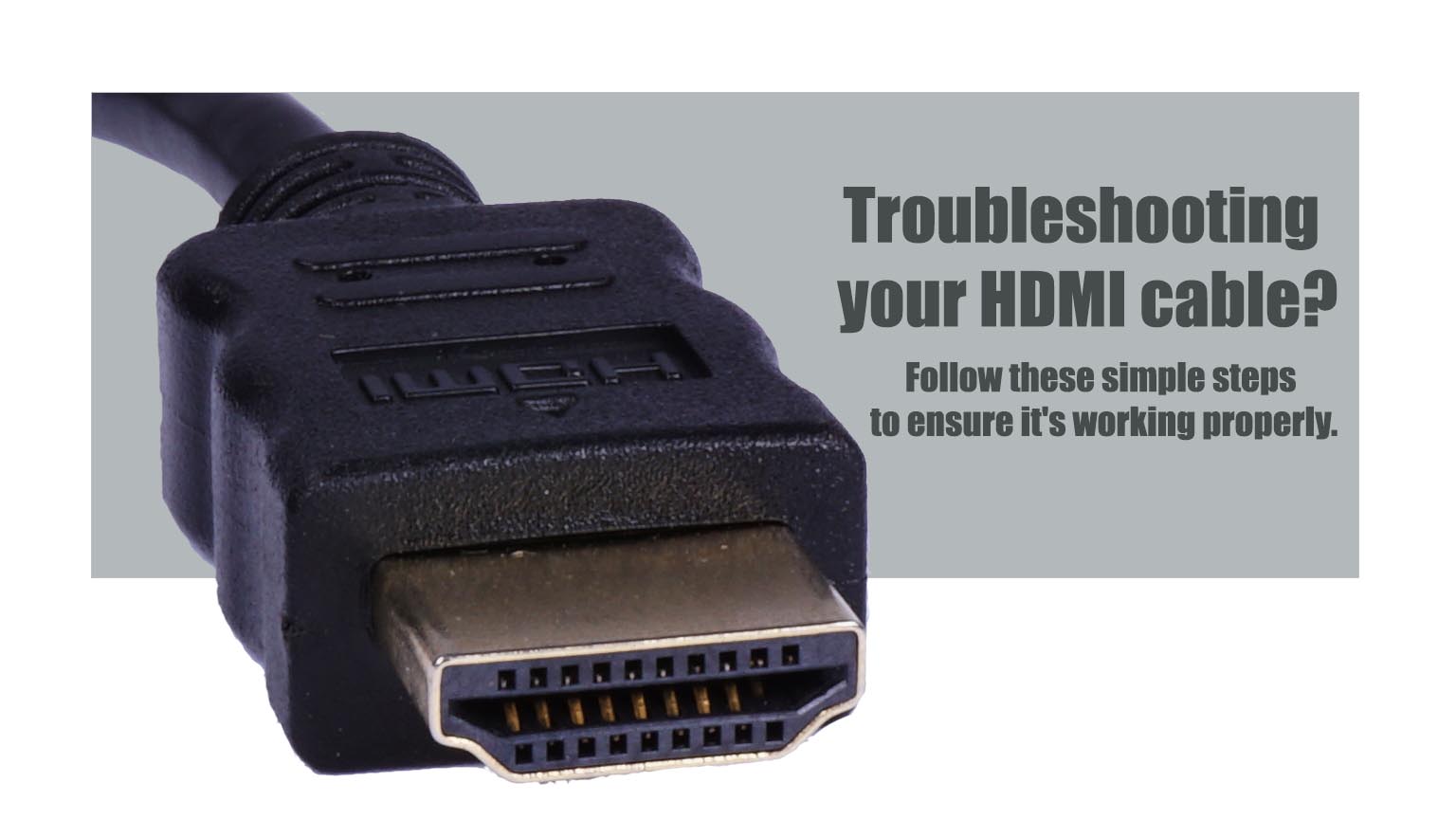
HDMI cables have become an essential component of modern home theater systems, allowing users to connect their TV, Blu-ray player, and other devices to their television. However, it can be frustrating when you encounter problems with your HDMI cable, making it crucial to know how to check if it is working correctly. In this article, we will provide a step-by-step guide on how to check if your HDMI cable is working or not.
Check the Connections
The first step is to check the connections if you have been experiencing issues with your HDMI cable. Ensure that your HDMI cables are correctly plugged in on both sides. If you are using a wall-mounted TV, make sure that the HDMI cables are connected to the correct ports on the back of the TV. Unplug and plug back in your HDMI cables if they are connected correctly to reset the cable and solve connectivity issues. If the problem persists, try replacing the HDMI cable.
Try a Different Device
If the HDMI cables are correctly connected, and you still have problems, try a different device. Use an older device if you have been using a new device with your HDMI cable, and vice versa. This step will help determine if the problem is with your cable or the device. If the issue persists, it may be a problem with your HDMI cable, and you need to replace it.
Restart and Reconnect Your Devices
Restarting and reconnecting your devices is another effective method to get your HDMI cable working again. Disconnect all HDMI cables from your device ports and shut down all your devices, including your computer, monitor, and TV. Unplug the power cables and batteries for five minutes before plugging them back in. Reconnect the HDMI cables to your devices and power on the TV first, followed by the computer. If this method does not work, you may need to replace your HDMI cable.
Test the Cable with an HDMI Tester
In some cases, it can be challenging to determine whether your HDMI cable is working correctly or not. In these cases, you can use an HDMI tester to check whether your cable is broken. Ensure that the HDMI tester is compatible with your cable before purchasing it. If your cable is working correctly, the tester will not detect any issues.
Check the HDMI Device Setting
If your HDMI cable is not broken, a setting on your device may prevent it from working correctly. Check your device’s settings by plugging it in and opening the device settings. Look for the HDMI settings and ensure that they are correct. Select the appropriate HDMI mode if you are using a TV or game console.
Try a Different HDMI Cable
If you have followed all the steps, and your HDMI cable is still not working correctly, try using a different one. If the new HDMI cable works correctly, your original one is likely broken. If the issue persists, you may need to repair your device or get a new one.
Conclusion
By following these steps, you can determine if your HDMI cable is faulty or not. Troubleshooting any HDMI cable issues becomes quick and easy. If you encounter problems, this article provides an easy-to-follow guide to solve them. You can share this article with your friends who want to know whether their HDMI cable works correctly.
