
Most of the people wonder if there could be a way to Edit and modify the Apps which they Use regularly from Play store and From Unknown sources. APK is an Android App extension for Android Smartphone and There are so many tools available like APK File Editor to edit the APK App files to modify the contents directly through a computer.
We will show you how to edit any Android APK files with the help of a Computer. You will be able to change the Icon, Edit it and also change the name of the Android App using the help of a computer. You could also find a lot of Apk Editor apps for every Android Smartphone in Google Play Store which helps you to disintegrate Android Apks into pieces and so you could able to edit and modify the sources to fit your needs.
If you are planning to just change the name or icon of an Android APK, You could able to do that with the help of Apk Editor Android App. APK Editor allows you to change the name and also an icon of the Android App right from your smartphone and tablet. If you are an Android developer and also want to make changes and modify the source deep inside with every layer and functions of it, You should consider getting an APK editor software made for Windows Operating system which helps you to bring some new ideas and make changes in the App directly.

Recommended for you:
How to Fix Samsung Phones Not showing up on PC
APK Studio
APK studio is an Open source software and it is also available for free for anyone to Disintegrate Apk files and make small or essential changes to the code and make major improvements with it. APK Studio lets you change the whole Android codebase and it is best for professional Android developers to study the code and make changes.
As a Beginner of Android development, You will find it easy to quickly get used to the software and learn faster as much as you could. You will be able to rebuild the whole Android Application in a matter of Minutes.
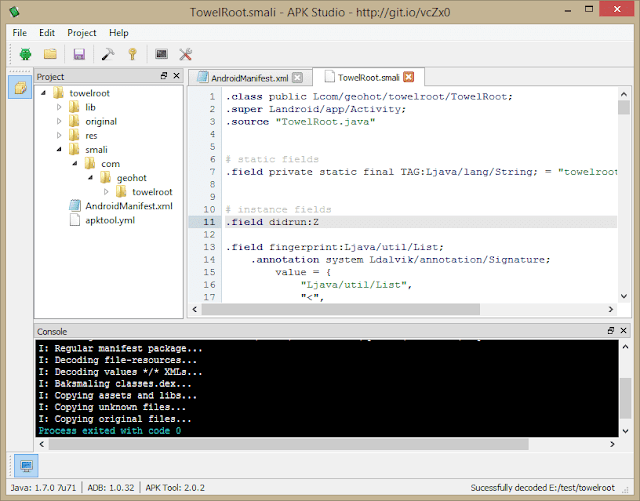
Features of Android Apk Studio
- You will be able to batch install, uninstall, disable, enable and pull Android Applications at once
- Ability to access the file browser, Partition and mount the storage
- Edit any Android APK even without the source code
- Study and Modify the Apk to bring your new changes
- Quick Debugging to Fix things
- Improve existing features and add new functionality
- Check for any Suspicious activities in the APK for risks
- Signing and Zipalign features
- XML and SMALI assist to help you
- Syntax Highlights
- Decompile and Recompile Apps within a matter of minutes
- Access to Shell
APK Icon editor
If you are not aware of the Android App development or only have little knowledge about it, It is better to use a normal editing tool that helps in changing the Name, Version and also the Icon of Android Apk with the help of Android Apk Editor.
You do not need much Technical knowledge also when you use an Android APK editor. You just have to download and install Android Apk editor and follow the on-screen instructions to set up the Android APK editor and Can use it right away to change the name, Icon and Version of Android Apks.

Feature of Apk Icon Editor
- You can able to change the APK file name and its Icon
- Change the size of an Icon
- You could able to use and upload to cloud like services from Google Drive, Onedrive, and Other popular Cloud drives within the App
- Pack and Unpack to edit the apk
- Ability to Change the version
- Change the icon colour to match your needs
