
It often becomes difficult to instruct someone to do a particular task on the laptop. In order to resolve this problem, you can use screen recorders. Screen recording software is software that helps in capturing and sharing footage straight from the desktop. What a screen recorder simply does is that it captures what’s on your screen and saves it in AVI format but some advanced free tools provide the features of editing, live streaming, gameplay optimization as well.

10 Best Screen Recording Software for Windows
Here, we have listed the top 10 screen recording software for Windows.
1. Bandicam
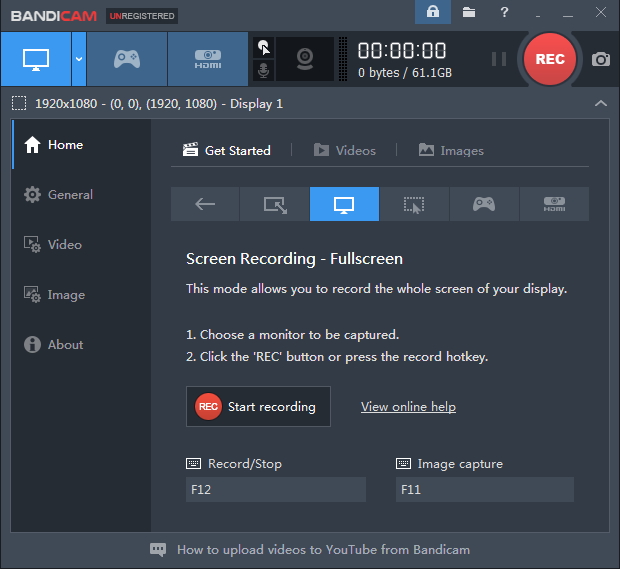
It is the best software for screencast creators and game players. It has the ability to capture high-quality videos from any Windows on your laptop. It is a simple and lightweight software.
Pros:
- It allows 24 hours of recording.
- It is a simple and lightweight software.
- It records 4k ultra HD videos.
Cons:
- It does not support live streaming.
- It has a watermark at the top of the videos if you download the full version.
2. OBS Studio
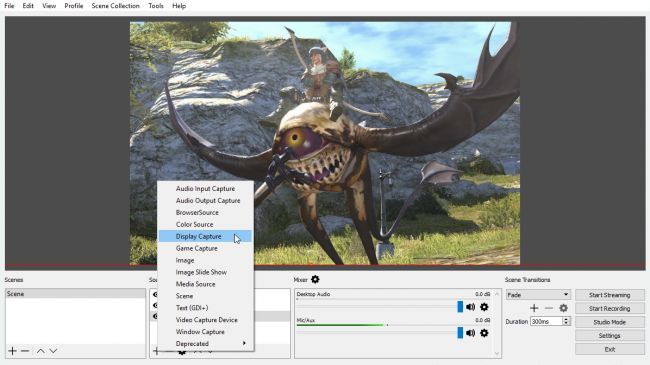
OBS stands for Open Source Broadcaster. It is an open source software. It is one of the best screen recorders for Windows 10. It can capture games running in full-screen mode. To control the recording, customizable hotkeys are used.
Pros:
- It supports HD screening and lives to stream.
- It is completely free to use without any restrictions.
- It can make full use of multi-core CPUs for improved performance. It can record at 60FPS (or higher) as well.
Cons:
- It takes a little while to set up.
- It may not be the easiest to learn for a beginner.
3. Camtasia
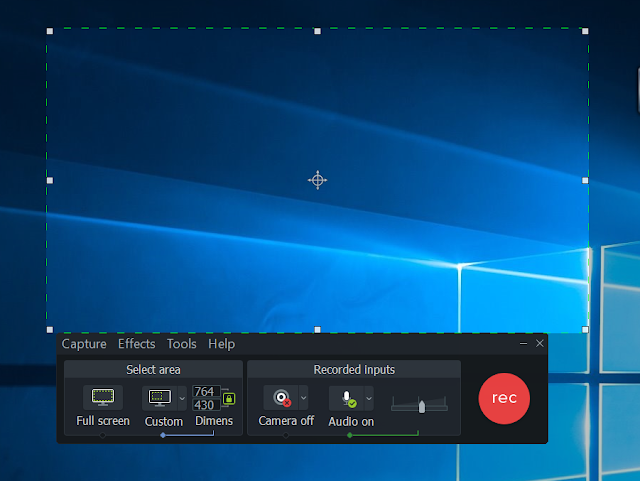
It helps in creating interactive videos containing clickable links which can make the videos more dynamic and suitable for uses in the classroom and workplace. HD videos can also be imported into your recording from external sources.
Pros:
- It can record professional videos of activities on the computer’s monitor with little effort.
- It is easy to incorporate animated items.
- It has a green screen effect which makes you feel like you are in the action.
Cons:
- Its demo for the entire software is free for only 30 days.
- When using the free version, users are not allowed to create videos for commercial purposes.
4. Flashback Express
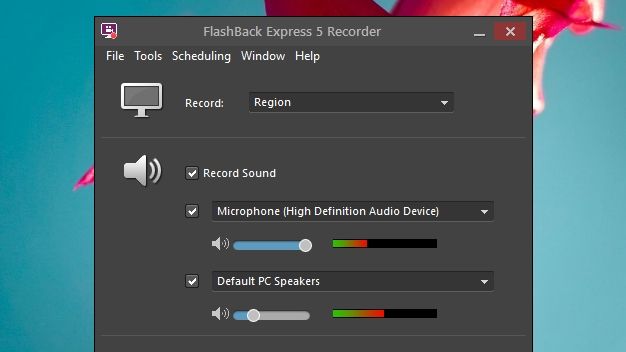
With the help of this software, videos can be recorded from the whole screen, a window, a selected area, or a webcam. It can export videos in WMV, AVI and MP4 formats which eliminate the need for a separate video converter. There is a dedicated gaming mode which lets you select the numbers of frames to be recorded per second.
Pros:
- It has a well-designed interface.
- It won’t put watermarks over your recordings.
Cons:
- Files only in FBR format are only allowed to import.
- The free trial is only for 30 days.
5. Filmora Scrn
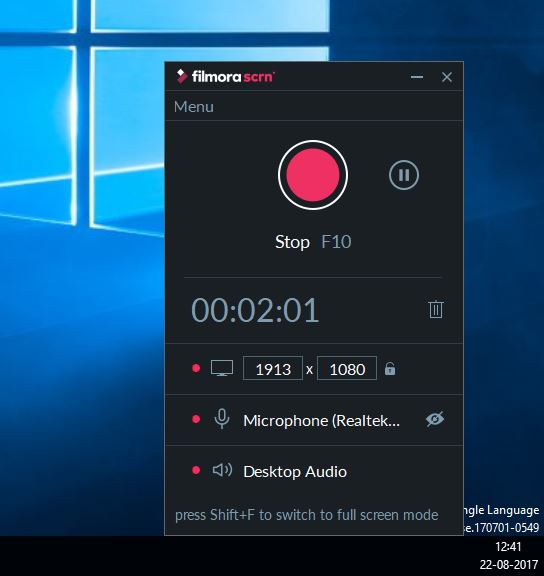
It is an interactive screen recorder. This software has the simplest interface. It has no particular time restriction for video recording. Voice recording can be done with both laptop Windows screen and webcam.
Pros:
- If your laptop is highly configured, you can enjoy 4k video recording.
- It provides free annotation editing tools.
Cons:
- It cannot record mobile devices.
6. DVD VideoSoft’s Free Screen Video Recorder
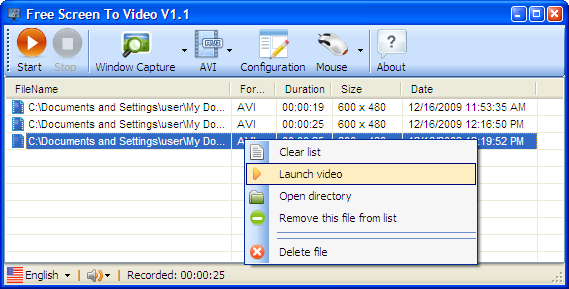
It allows the user to capture videos, objects, menus etc from the laptop screen. Its output formats include JPEG, BMP, GIF, PNG etc.
Pros:
- It is available in 10 languages.
- Skype conversations can be easily recorded.
- It offers a convenient screenshot feature.
Cons:
- It can only record microphone sound.
7. iSpring Free Cam
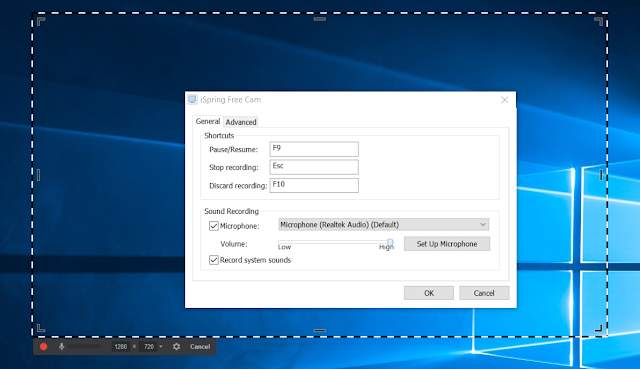
This software is free of cost. It doesn’t have any time limits, watermarks or ads. It has an attractive interface.
Pros:
- It saves videos in HD format.
- Undesired fragments of videos can be easily deleted.
- It can record voice-overs and computer sounds.
Cons:
- It saves recordings as WMV only.
- Webcam recording cannot be done.
8. ShareX

This software is mostly targeted towards power users and developers. It supports lots of URL sharing services. It has no fewer custom features than any paid software.
Pros:
- It has custom watermarks and colour effects.
- Existing photos and videos can also be imported.
- For easier and faster navigation, hotkeys are incorporated.
Cons:
- The game recording quality is low.
- It is quite difficult to understand for an average user.
9. CamStudio
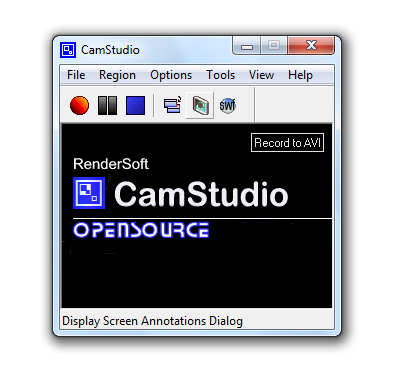
This software is a good choice for users with minimal needs. It is a light-weight software. It has a compact interface which makes it easier to produce screen captures and instructional videos as well with other users and around the globe.
Pros:
- It creates a screen-in-screen video.
- It allows the user to create small size files.
- It can convert AVI format into Flash.
Cons:
- Its output is not compatible with certain browsers.
- It does not have animation and interactive features.
10. IceCream Screen Recorder
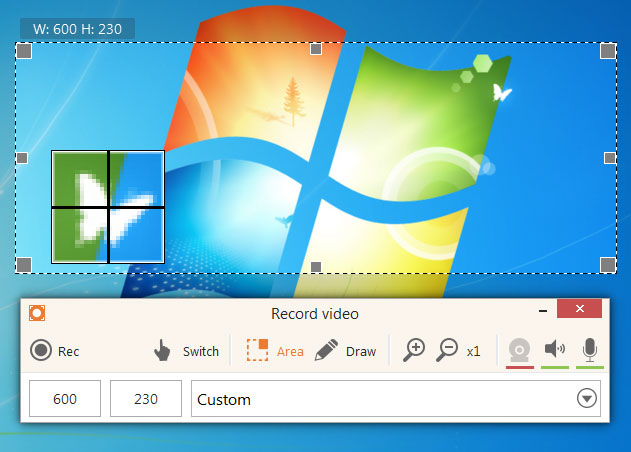
This software can be used to make professional-looking videos of games and webinars. This software can capture any area of the screen as either a screen recording or a screenshot graphic. It has an easy-to-use interface.
Pros:
- It has a zoom tool which allows the user to zoom in while recording.
- It can draw, outline, and add text to your video capture.
- Multiple screen captures can be set on a timer.
Cons:
- WebM is the only video format which is free.
- Only 10 minutes of recording can be done with the free version.
Hence, we have mentioned some of the best screen recording software for Windows. You can use both free and paid software which can be effective in capturing your work-related and other activities on Windows.

[…] Also Read: Top 10 Best Screen Recording Software for Windows […]